IMPORTANT: Starting July 1, 2023, standard Universal Analytics properties stopped processing data. You'll be able to see your Universal Analytics reports for a period of time after July 1, 2023. However, new data will only flow into Google Analytics 4 properties. Please connect your website to your GA4 immediately if you have yet to do it.
What Is Google Analytics 4?
Google Analytics 4 is the newest version of Google Analytics. This advanced version empowers marketers to efficiently examine vital metrics related to customer usage, going beyond mere traffic monitoring.
It possesses cross-platform capabilities, enabling the measurement of user engagement across both your website and app—marking a notable first for Google Analytics.
New Changes
The customer usage metrics allow you to track the user journey through GA4’s Funnel Exploration feature which shows you the exact steps users take before completing a conversion.
This feature allows you to track how effectively the funnel is followed which gives you a better understanding of the conversion process.
GA4 is also focused on customer privacy. This comes in the face of some of the latest privacy laws, such as GDPR and CCPA. GA4 uses data anonymization by default, meaning it no longer stores the IP addresses of site visitors (unlike Universal Analytics).
Leveraging privacy-first tracking, cross-channel data measurement, and AI-driven predictive analytics, GA4 stands out as an advanced tool that delivers unparalleled insights.
How to Set Up Google Analytics 4
Alongside an Existing Property
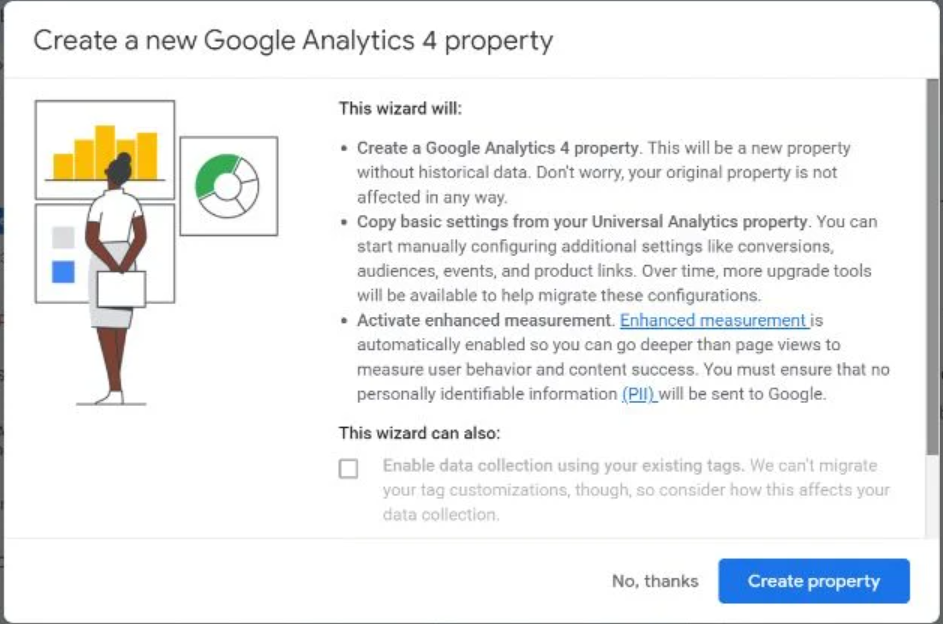
If you currently have a Universal Analytics property for your website, then set up of a Google Analytics 4 property can be completed with the GA4 Setup Assistant.
- In Google Analytics, click “Admin” on the lower left of the screen.
- In the Account column, select the desired account
- In the Property column, select the Universal Analytics property that currently collects data for your website
- In the Property column, select GA4 Setup Assistant
- Click “Get started” under “I want to create a new Google Analytics 4 property:”
- If your site uses the gtag.js tag, you can select “Enable data collection using your existing tags.”
- Click “Create Property.”
Reporting and Analysis in GA4
The dashboard on Google Analytics 4 is completely different from that of Universal Analytics. Welcome GA4's event-based setup. This transition is widely acknowledged as one of the key advantages of GA4, as numerous commonly tracked events are inherently integrated. These encompass scroll tracking, outbound clicks, site searches, video engagement, and file downloads.

GA4 places a strong emphasis on artificial intelligence and machine learning, aiming to assist users in recognizing present trends and predicting future ones. It can be accessed from Home > Insights.
When you open Insights, you will see any of the trends Google has suggested for you. You can also create custom insights from this section, just click Create from the Insights section.
Dashboard
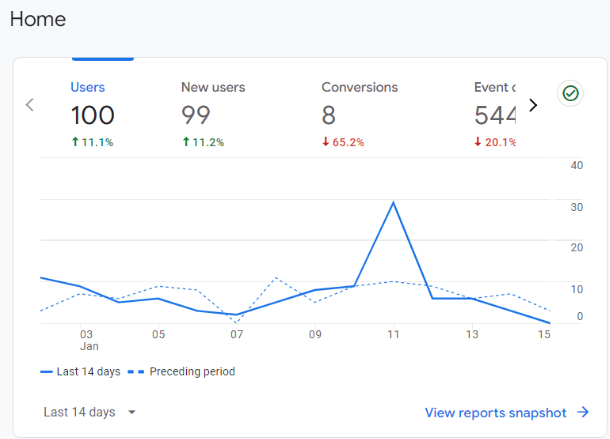
“Users” - is the number of people who engaged with your site or app in the specified date range
“Event Count”—A real-time report of how many events have been completed over the last 7 days. As we’ll explore later, “Events” count as several things — it does not simply refer to purchase conversions. A user playing a video on your site can count as an event, as can a site visitor signing up for your mailing list.
“Conversions“—This refers to any event that has been completed that is of high value to your website. For example, if a site visitor buys one of your products or subscribes to your service or newsletter.
and “Sessions“—This metric reflects how many times a user has landed on your domain, regardless of whether they completed an event or not.
As default, these metrics will be set to show the last 7 days, but you can change the data period at the bottom left-hand side of the graph.

At the left menu, you can see Reports. Click on this, and you’ll be presented with your “Reports snapshot”

If you click on “Realtime Reports” on the left-hand menu, you’ll get more insightful data. You can review what device your users are visiting from, whether it be their phone, tablet, or desktop
If you scroll down the page, you’ll gain an overview of:
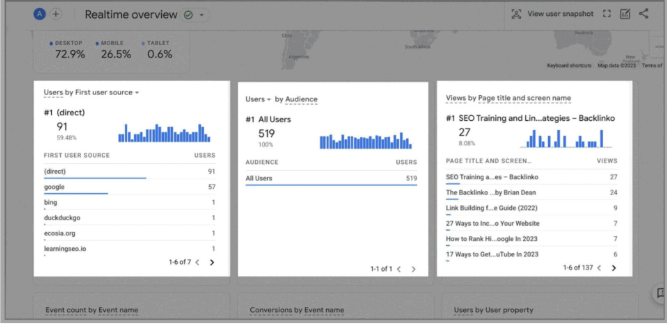
The "Users by First User Source" feature shows you where users were before they came to your website. Visitors might have reached your site by typing the URL directly, through search engine results (SERPs), or by clicking a link from another website. This helps you figure out which source is currently giving you the most traffic
"Users by Audience" allows you to examine how your users belong to various categories. In GA4, you can create custom audiences, which enables you to break down and analyze your data in a more detailed manner.
"Views by Page Title and Screen Name" is straightforward—it shows you the web pages that your current and recent site visitors are looking at. This feature helps you identify which of your web pages are generating the most interest.
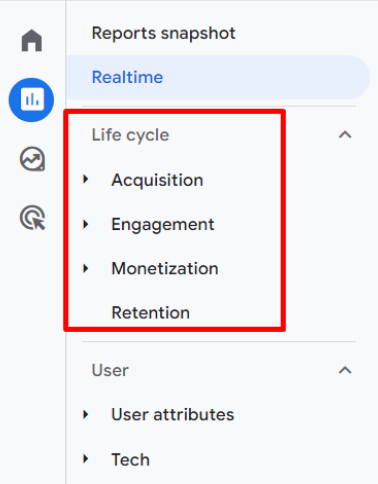
Under Lifecycle, you can see 4 main headings: Acquisition, Engagement, Monetization and Retention
Acquisition looks at where new and existing customers come from (either organic search, direct, referral, organic social, or organic video)
Engagement
This section focuses on the actions users take once they are on your site. Engagement reports cover conversions, events, pages and screens, and landing pages.
All of this provides a quick overview of how users engage with your site. Importantly, you can utilize this section to analyze which landing pages your site visitors are accessing most frequently.
Additionally, you can examine the pages that attract the highest number of users, along with the average time users spend on each landing page
Monetization
In this section, you will discover reports that illustrate how user engagement converts into monetization. Beyond just e-commerce purchases, you can explore the entire user purchase journey and understand how publisher ads and promotions played a role in securing conversions.
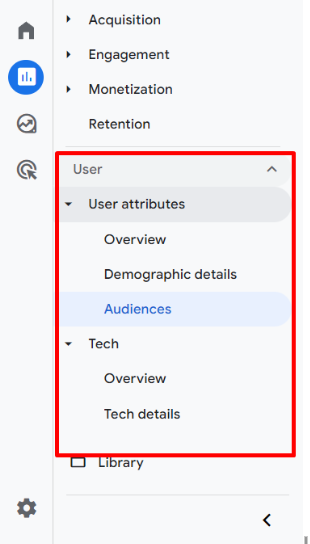
Under Audiences, you will be able to know where your audiences come from, by city, interest, age, language and gender. You can also create custom audiences according to your business needs.

Go to Admin > Audiences > “New audience”. And you’ll see suggested audiences listed under the “Use a reference” section. Click new audience and you can create the audience you want and start tracking.

Contact Us Now to get a FREE paid compaign review from us.