What is Google Search Console?
Google Search Console is a free SEO tool provided by Google that helps website owners, webmasters, and SEO professionals monitor and maintain their site's presence in Google Search results.
Through Google Search Console, website owners understand how they are performing on Google Search, and what they can do to improve their search appearance, to monitor how Google views their site and optimize its organic presence.
How To Add Your Website to Google Search Console?
Here is a step-by-step guide to signing up for Google Search Console:
Step 1: Sign in to Your Google Account
Go to Google Search Console. Click on the "Start now" button.
Sign in with your Google account. If you don't have a Google account, you will need to create one.
Step 2: Add a Property
After signing in, you will be directed to the Search Console dashboard.
Click on the "Add Property" button in the top left corner.
You will see two options to add your property: Domain and URL prefix.
Domain: This option requires DNS verification and covers all URLs across all subdomains (e.g., example.com, blog.example.com) and protocols (http, https).
URL prefix: This option is easier to set up and only covers the specific URL entered and its subdirectories (e.g., https://www.example.com).
Step 3: Verify Your Property
Choose the method that suits you best and follow the instructions provided.
For Domain:
Select "Domain" and enter your domain name (e.g., example.com). Click "Continue" and follow the instructions to add a DNS TXT record to your domain's DNS settings.
After adding the DNS TXT record, click "Verify."
For URL Prefix:
Select "URL prefix" and enter your website's URL (e.g., https://www.example.com). Click "Continue."
You will see various verification methods, such as uploading an HTML file, adding a meta tag to your site's homepage, using Google Analytics, using Google Tag Manager, or connecting to your domain name provider.
Choose your preferred method and follow the instructions provided. Once you have implemented the verification method, click "Verify."
Step 4: Confirm Verification
After completing the verification steps, Google will check the implementation.
If the verification is successful, you will see a confirmation message.
If the verification fails, check the instructions and try again, ensuring that all steps are correctly followed.
Step 5: Explore Google Search Console
Once verified, you can start using Google Search Console.
You will have access to various tools and reports to monitor your site's performance in Google Search.
Step 6: Submit Your Sitemap (Optional but Recommended)
From the dashboard, select your property. Click on "Sitemaps" in the left-hand menu. Enter the URL of your sitemap (e.g., https://www.example.com/sitemap.xml) and click "Submit."
Understand Google Search Console Metrics

Clicks:
- This metric shows how many times your site was clicked on for a particular query.
Impressions:
- This metric indicates how many times your site appeared in search results for a specific query, regardless of whether it was clicked.
Click-Through Rate (CTR):
- The CTR is the percentage of impressions that resulted in a click. It is calculated by dividing the number of clicks by the number of impressions and multiplying by 100.
Average Position:
- This metric shows the average ranking position of your site in search results for a specific query.
How Can You Use This Free SEO Tool Google Search Console?

- Search console insights
On the Overview page, click the “Search Console Insights” on top right and you will see a summary of the performance of the past 28 days. You can also check out your achievement here and share it with your team.
- Identify your highest-traffic pages
- Click “Performance” from left menu
- Click the “Page” tab
- Click the small downwards arrow beside Clicks to sort from highest to lowest
- Identify your highest CTR queries
- Click “Performance”
- Click Queries
- Click the small downwards arrow beside Clicks to sort from highest to lowest
- Identify your search traffic among various countries
- Click Performance
- Click “Countries”
- Compare your performance across countries
- Learn how many total backlinks your site has
- Click Links
- You can export external links report
- From here, you can check out the quantities of internal and external link, and the top linking sites to your website
- Inspect website page/Request index to new page
- Click “URL Inspection”
- Enter the URL to the top bar

3. If the result is "The url is on Google", means the page is indexed and can appear in the search. If the page has not been indexed, you can click “request indexing”
- Page indexing
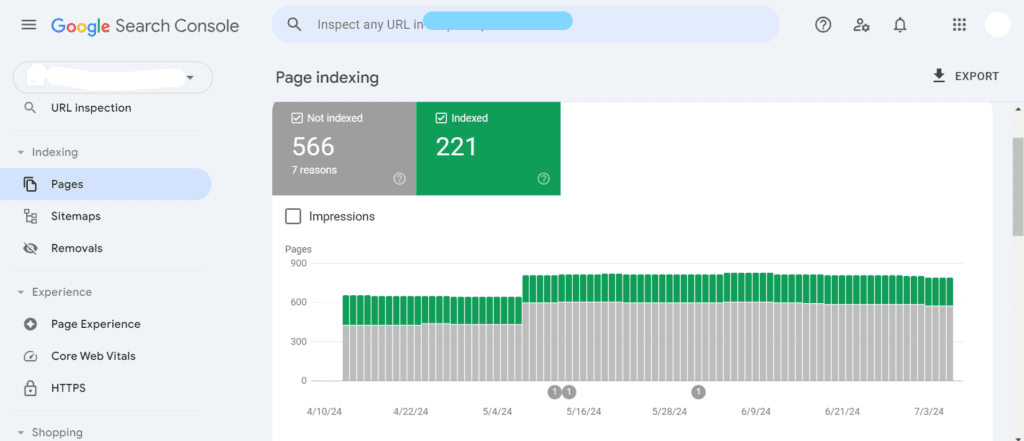
a) Click “Pages”
b) The Pages indexing report in Google Search Console provides information about which pages on your website Google can (or cannot) find. This report is essential for technical SEO and offers many opportunities for quick improvements.
c) If you notice a change in the number of pages indexed or not indexed, it's important to investigate the cause.
There are many more features we can use on Google Search Console to improve the SEO of our website. Feel free to contact me if you need help connecting your website to Google Search Console, and starting a SEO journey with us.