If you run an e-commerce store or lead generation business in Malaysia, you already know one thing. Getting traffic is easy. Getting the right traffic that actually buys or enquires is the real challenge, which is why many businesses turn to Google Ads service to attract high-intent customers.
This is where pay-per-click advertising comes in. But not all platforms work the same way. Some bring attention. Some bring likes. Only a few bring ready-to-buy customers.
In this article, we will break down the best PPC platforms for Malaysian businesses and explain why Google Ads remains the strongest choice for consistent sales and high-quality leads.
Malaysian consumers are highly digital. They search for products, compare prices, read reviews, and make decisions online. The platform you choose determines:
Running ads without a clear strategy often leads to wasted budget. Choosing the right platform from the start saves you time, money, and frustration.
When people use Google, they are not browsing. They are actively searching. This is what makes Google Ads so powerful.
Someone searching is already looking for a solution. You are not convincing them to buy. You are simply showing up at the right moment.
That is why Google Ads consistently outperforms most other platforms in terms of lead quality and conversion rate.
With Google Ads, your business can:
For e-commerce, Google Shopping Ads show your product image, price, and brand directly in search results. This attracts buyers who are already comparing options.
For service businesses, Google Search Ads bring enquiries from people who are ready to take action.
The biggest advantage of Google Ads is intent.
On social media, people scroll.
On Google, people search.
This means:
When set up correctly, Google Ads becomes a predictable source of sales and enquiries.
Facebook and Instagram ads are excellent for:
They work well for visibility but the buying intent is lower. Most users are scrolling for entertainment, not actively shopping.
These platforms are best used together with Google Ads, especially for retargeting people who visited your site but did not convert.
TikTok is strong for:
It is great for attention and reach. However, it requires creative videos and frequent testing. The purchase intent is still lower compared to Google search traffic.
If you sell on marketplaces, Shopee and Lazada ads can help increase visibility inside their platforms. This is useful for competition within the marketplace.
However, you are limited by:
They work best as a supporting channel, not your main growth strategy.
If your goal is:
Then Google Ads should be your main focus.
Social media platforms are excellent for exposure and remarketing. Google Ads is where conversions happen.
Some businesses try Google Ads and say it does not work. In most cases, the problem is not Google. The problem is:
Google Ads is not a set-and-forget platform. It requires experience, data analysis, and continuous improvement.
This is why working with a professional Google Ads Service Provider makes a big difference.
We help Malaysian businesses get more enquiries and more sales using Google Ads.
Our approach is focused on results:
Whether you run an online store, a service business, or a B2B company, we build a Google Ads strategy based on your goals and budget.
If you want consistent leads and sales from people who are actively searching for your products or services, Google Ads is the platform to focus on.
Get in touch with us today for a free consultation and let us show you how Google Ads can help grow your business in Malaysia.

If you’re asking why your website is not ranking on Google, and you’ve already paid to build a site, this guide will show you exactly how to fix your SEO.
You invested time and money into a beautifully designed site, yet it feels like you’re shouting into the void—no traffic, no leads, no sales. A website without visitors is like a store in the woods: perfect interiors, but nobody to walk through the door.
In this guide, you’ll learn exactly how to diagnose why Google isn’t showing your pages, the common reasons your site isn’t ranking on Google, and step-by-step fixes to start driving organic traffic within 3–6 months.
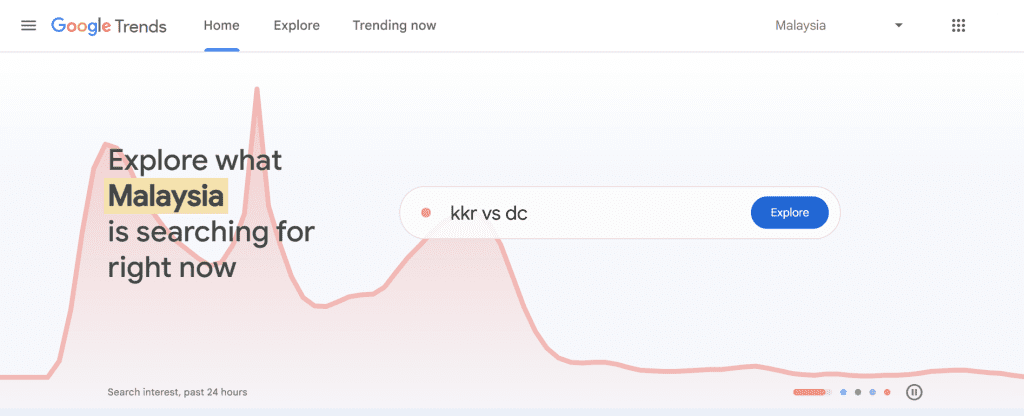
Fix: Create in-depth, user-focused articles that solve problems. Use headings (H2, H3) to structure answers clearly.
If you’ve built a site and still wonder why is my website not ranking on Google, it’s time for a deep dive. Get a FREE SEO Diagnosis Report today—no obligations, just clarity on what’s holding you back and an actionable roadmap to fix SEO issues and boost your visibility.
To know more about what we provide for SEO service, please visit to our SEO PAGE
Search Engine Optimization (SEO) is a powerful digital marketing strategy that helps businesses improve their website’s visibility on search engines like Google. Whether you’re running an online store, a blog, or a service-based website, SEO is essential for attracting organic traffic and increasing brand awareness. But how does SEO work, and how long does it take to see results? Let’s break it down.
SEO stands for Search Engine Optimization, which involves optimizing a website to improve its rankings on search engine results pages (SERPs). The higher your website ranks, the more organic (non-paid) traffic it can receive. SEO includes various techniques, such as:
This focuses on optimizing individual web pages to make them more search-engine-friendly. It includes:
This involves activities outside your website that impact rankings, such as:
This ensures that search engines can crawl and index your website effectively. It includes:
For businesses targeting a specific geographic area, local SEO helps optimize your presence in Google’s local search results. This includes:
One of the most common questions businesses ask is, "How long does SEO take?" The answer depends on several factors, including the website’s current status, competition level, and SEO strategy. However, here’s a general timeline:
SEO is a long-term investment that requires patience and consistency. While some improvements can be seen within a few months, achieving top rankings and sustaining them takes ongoing effort. If you’re looking for an effective SEO strategy tailored to your business, professional SEO services can help accelerate the process and maximize results.
Would you like a customized SEO plan for your website? Let’s discuss how we can improve your rankings! 🚀
Many business owners hear about SEO and SEM but aren’t sure what they mean or how they work. In this article, we’ll explain both in the simplest way possible so you can understand how they help your business grow.
SEO stands for Search Engine Optimization. It’s the process of improving your website so it appears in Google’s search results for free. SEO helps drive organic (unpaid) traffic to your website over time.
Pros of SEO: ✔ Free traffic (no ad costs) ✔ Builds trust and credibility ✔ Long-term benefits
Cons of SEO: ✖ Takes time to see results (months or even a year) ✖ Requires ongoing effort and updates
SEM stands for Search Engine Marketing. It involves using paid ads to appear at the top of Google search results. The most common form of SEM is Google Ads (formerly Google AdWords).
Pros of SEM: ✔ Instant visibility and traffic ✔ Highly targeted (you choose who sees your ad) ✔ Great for new businesses looking for fast results
Cons of SEM: ✖ Costs money for each click ✖ Traffic stops when you stop paying ✖ Competition can make ads expensive
SEO and SEM are both powerful tools for growing your business online. By understanding the differences and benefits of each, you can create a strategy that fits your goals and budget.
Need help with SEO or SEM? Let’s talk! 🚀
Google Ads is a powerful tool for online advertising, but many businesses unknowingly waste money due to common mistakes. Most agencies won’t openly discuss these issues, but understanding them can help you optimize your ad campaigns and get better results. Here are some of the most common Google Ads mistakes and how to fix them:
Google Ads offers an "Auto Apply" feature that automatically applies optimization suggestions to your campaign. While this sounds convenient, enabling it blindly can lead to problems like:
❌ Irrelevant Keywords – Google may add keywords that don’t align with your business, lowering traffic quality.
❌ Wasted Budget – Automated bidding adjustments might increase costs without boosting conversions.
❌ Uncontrolled Ad Copy Changes – Google may modify your ads, shifting away from your brand voice.
❌ Audience Expansion Risks – Google might broaden your audience, leading to irrelevant clicks.
🔹 Manually review all suggestions before applying them.
🔹 Regularly monitor campaign performance to ensure changes align with your goals.
🔹 Use a combination of manual optimization and data analysis for the best results.
💡 Key Takeaway: Auto Apply isn’t always the best option—stay in control of your campaign!
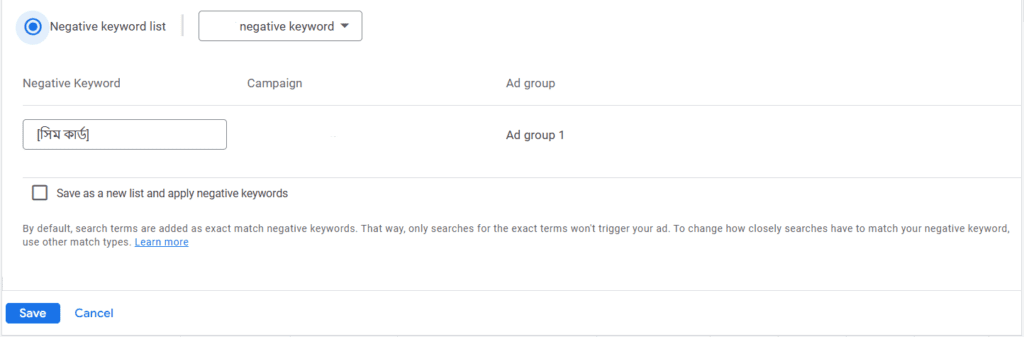
Without negative keywords, your ads might appear for irrelevant searches, wasting your budget. For example, if you sell luxury watches, your ad might show up for searches like “free watches” or “second-hand watches.”
✔ Regularly check your Search Terms Report to find irrelevant keywords.
✔ Add them to your Negative Keywords List to prevent wasted clicks.
✔ If you sell new products, exclude keywords like "used" or "second-hand."
💡 Pro Tip: Negative keywords help filter out unqualified traffic and improve conversion rates!
🚫 Ignoring mobile users – Many businesses optimize for desktops but neglect mobile experiences.
🚫 Mismatched keywords – If your landing page doesn’t match your ad, users will leave quickly.
🚫 Slow load times – A slow page discourages visitors from staying and converting.
✔ Ensure fast-loading, mobile-friendly landing pages with clear CTAs.
✔ Align your landing page content with your ad keywords for relevance.
✔ Use mobile-friendly ad extensions like call buttons for better engagement.
💡 Remember: A great ad is useless if your landing page isn’t optimized!
Using the same ad copy and images for too long leads to Ad Fatigue—meaning people stop noticing your ads, lowering your CTR and conversions.
✔ Regularly test different versions of ad copy, images, and videos.
✔ Use A/B testing to find the best-performing combination.
✔ Refresh your creatives every few weeks to maintain engagement.
💡 New visuals keep your ads fresh and maximize results!
Many businesses use Broad Match by default, which causes ads to show for loosely related searches. This wastes budget on unqualified clicks.
✔ Use Phrase Match and Exact Match to target relevant searches.
✔ Regularly check your Search Terms Report to refine your keywords.
✔ Combine with Negative Keywords to filter out irrelevant traffic.
💡 More precise keyword matching = higher quality traffic & better ROI!
Running a successful Google Ads campaign isn’t just about spending money—it’s about spending smartly. Avoiding these common mistakes can significantly improve your ad performance, reduce wasted budget, and boost conversions.
We teach you how to spy on your competitor's ads by using Facebook Ad Library.
New to Ads? Unsure Where to Start?
In today's digital marketing landscape, understanding your competitors' ad strategies has become essential. Facebook Ad Library and Page Transparency are powerful tools for gaining insight into your competitors' ad activities.
It is a public platform that allows anyone to view all ads running on Facebook.
Whether you want to see which products/ a brand is promoting or track industry trends, the Ad Library can help you achieve that.

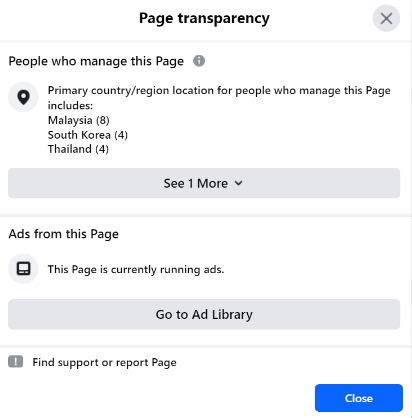
Page Transparency allows you to view detailed information about a Facebook page, including when it was created, any name changes, and all active ads in the Ad Library.
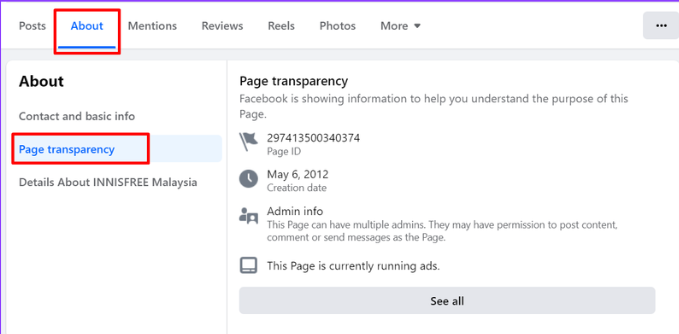
Besides browse directly to https://www.facebook.com/adlibrary.
You can access ad library through page transparency.
Option 1: Browse Directly to Ad Library
Step 1: Go to the Fb Ad Library
Step 2: Select "All Ads" and enter keywords or competitors into the search bar.
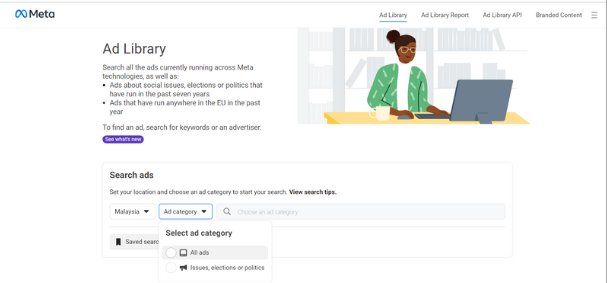

⚠️ If an ad is repeatedly used, there's a high chance it’s a winning ad.
Option 2: Access Through Page Transparency
Step 1: Go to any Facebook Page.
Step 2: Click "See All" > "Go to Ad Library.

We provide free 1-1 ads review for your business. Fill up your details at https://myccsdigital.com/contact-us/ and we will contact you soon!
To learn more about Meta Facebook Ads, kindly visit to https://myccsdigital.com/facebook-ads/
Google Search Console is a free SEO tool provided by Google that helps website owners, webmasters, and SEO professionals monitor and maintain their site's presence in Google Search results.
Through Google Search Console, website owners understand how they are performing on Google Search, and what they can do to improve their search appearance, to monitor how Google views their site and optimize its organic presence.
Here is a step-by-step guide to signing up for Google Search Console:
Step 1: Sign in to Your Google Account
Go to Google Search Console. Click on the "Start now" button.
Sign in with your Google account. If you don't have a Google account, you will need to create one.
Step 2: Add a Property
After signing in, you will be directed to the Search Console dashboard.
Click on the "Add Property" button in the top left corner.
You will see two options to add your property: Domain and URL prefix.
Domain: This option requires DNS verification and covers all URLs across all subdomains (e.g., example.com, blog.example.com) and protocols (http, https).
URL prefix: This option is easier to set up and only covers the specific URL entered and its subdirectories (e.g., https://www.example.com).
Step 3: Verify Your Property
Choose the method that suits you best and follow the instructions provided.
For Domain:
Select "Domain" and enter your domain name (e.g., example.com). Click "Continue" and follow the instructions to add a DNS TXT record to your domain's DNS settings.
After adding the DNS TXT record, click "Verify."
For URL Prefix:
Select "URL prefix" and enter your website's URL (e.g., https://www.example.com). Click "Continue."
You will see various verification methods, such as uploading an HTML file, adding a meta tag to your site's homepage, using Google Analytics, using Google Tag Manager, or connecting to your domain name provider.
Choose your preferred method and follow the instructions provided. Once you have implemented the verification method, click "Verify."
Step 4: Confirm Verification
After completing the verification steps, Google will check the implementation.
If the verification is successful, you will see a confirmation message.
If the verification fails, check the instructions and try again, ensuring that all steps are correctly followed.
Step 5: Explore Google Search Console
Once verified, you can start using Google Search Console.
You will have access to various tools and reports to monitor your site's performance in Google Search.
Step 6: Submit Your Sitemap (Optional but Recommended)
From the dashboard, select your property. Click on "Sitemaps" in the left-hand menu. Enter the URL of your sitemap (e.g., https://www.example.com/sitemap.xml) and click "Submit."

Clicks:
Impressions:
Click-Through Rate (CTR):
Average Position:

On the Overview page, click the “Search Console Insights” on top right and you will see a summary of the performance of the past 28 days. You can also check out your achievement here and share it with your team.

3. If the result is "The url is on Google", means the page is indexed and can appear in the search. If the page has not been indexed, you can click “request indexing”
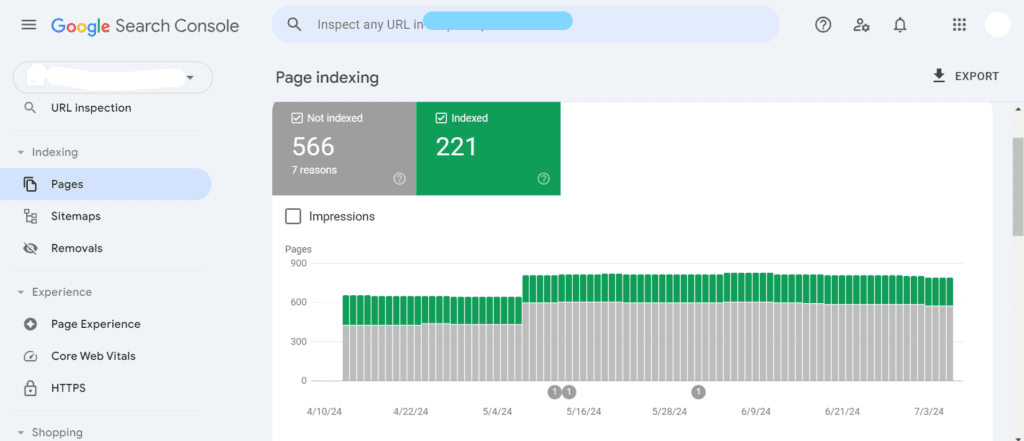
a) Click “Pages”
b) The Pages indexing report in Google Search Console provides information about which pages on your website Google can (or cannot) find. This report is essential for technical SEO and offers many opportunities for quick improvements.
c) If you notice a change in the number of pages indexed or not indexed, it's important to investigate the cause.
There are many more features we can use on Google Search Console to improve the SEO of our website. Feel free to contact me if you need help connecting your website to Google Search Console, and starting a SEO journey with us.
Creating a Google Business Profile Listing helps you get discovered easily on Google Search and Maps, attract nearby customers, and build trust with real reviews and photos.
Especially for new business owners, Google Business Profile is a FREE and MUST-HAVE marketing tool for your business, whether you are selling products or services.
Google Business Profile is to list your business location on Google Maps and local search results. You can display information about your business, including opening/closing time, contact details, images, location or a link to your website.

Step 1: Visit to https://www.google.com/business/
Step 2: Click “Manage Now”
Step 3: Enter the name of your business.
Be sure you spell your name correctly and use Title Case (where you capitalize the first letter of each word.) This is the first impression for a customer, and you want to make sure it’s a positive experience.
Step 4: Search for your Business Category
Step 5: Click Next
Step 6: Choose whether you have a location customers can visit.
Step 7: Enter the service area of your business.
Step 8: Enter a phone number and website URL.
Step 9: Click Next.
Step 10: Click Finish.
Step 11: Select a verification option.
 Later.
Tips for a Successful Google Business Profile
SEO is crucial for all businesses, especially small ones because it helps them compete with larger companies in search results. Google makes local SEO easier with its Business Profiles, so having a Google Business Profile Listing account is vital for any business wanting to be seen in their local area.
Feel free to contact us if you have any questions regarding Digital Marketing or you need us to help you set up your Google Business Profile.
Read more latest news: https://myccsdigital.com/insights/
How to optimize your google ads campaign by using Ad Strength:
To optimize the performance of your Google ads campaign, one of the optimization solutions is to check the ad strength.
What is Ad Strength?
Ad Strength provides you with feedback to help you focus on providing the right messages to your customers. It shows how well an ad creative follows Google’s best practices for optimal performance.
Ranging from “Incomplete”, “Poor”, “Average”, “Good” to “Excellent,” this metric measures the relevance, quality, and diversity of your ad copy.
A higher Ad Strength will also help you to maximize your ad’s performance. Combined with actionable feedback, Ad Strength makes it easier for you to improve the effectiveness of your ads.
Where to Check My Ad Strength?
In the page menu on the left, under Ads & Assets, click Ads and you can see a table of your ads’s performance.
If the "Ad strength column isn't prepopulated in your account, click the Columns icon above the campaign's table, open the "Attributes" folder, check Ad strength, and click Apply.

How to Improve Ad Strength?
Click edit the ad and make changes according to the actionable feedback provided by Google. While creating or editing an ad, you will be able to view an indicator of your Ad Strength. Your ad’s strength rating and action items will change dynamically as you fill out your ad’s assets.
Make sure the ad strength is excellent before you click “Publish”. Google will study your ads again and provide a new ad strength later. Do remember to check again to make sure the ad strength is Excellent!

Recommendations to improve ad strength:
Contact us now to get a FREE Google Ads Review.


